|
Step-by-step Shopping Guide for IBOs/VIP Shoppers
- To shop, sign in to your account using your IBO or VIP Shopper ID and Password.
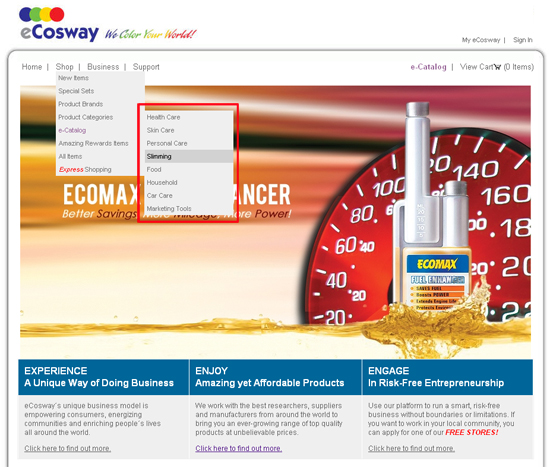
- Click on the “Shop” link on the Home page and choose any of the links.
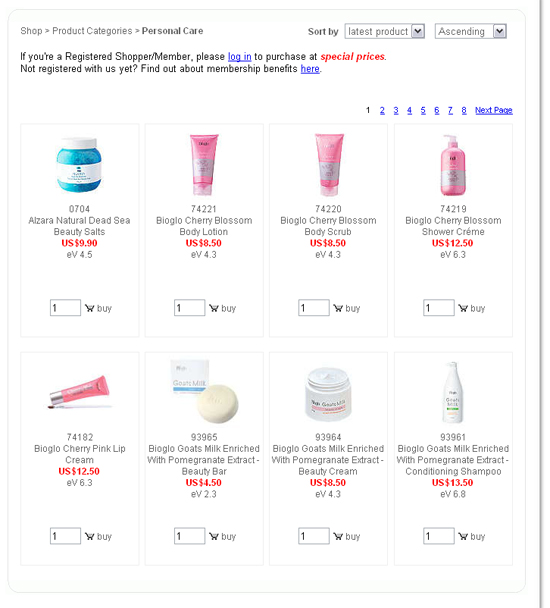
- Click on the product category to view the full range of products available under that category.
- Enter the quantity you would like to purchase and click on “buy”.
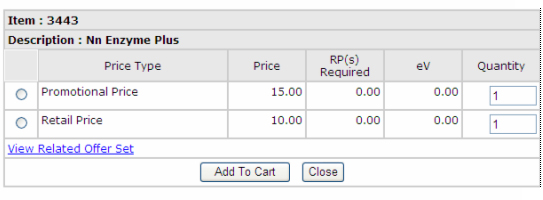
- If the product is available at a few prices (different promotions), you will see something like this:
- Select a “Price Type”, enter the quantity, and then click “Add To Cart” tab or “Close” to go back to Product Display page.
- Click “View Related Offer Set” to see if the product is also available in a promotional set. Click on “Set Name” to view set details and price.
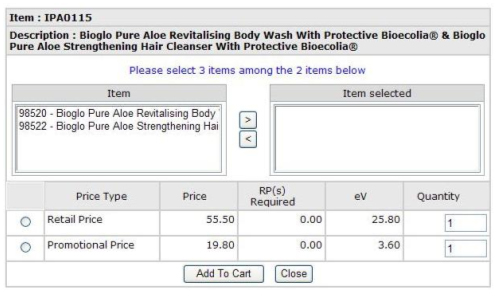
- Click on the “buy” icon. Product options will be available.
- Select items and click [>] to add them to the “Item(s) selected” list or [<] to remove them from the list. Select a “Price Type”, enter a quantity and then click “Add To Cart”. The message “Product added to cart” will appear.
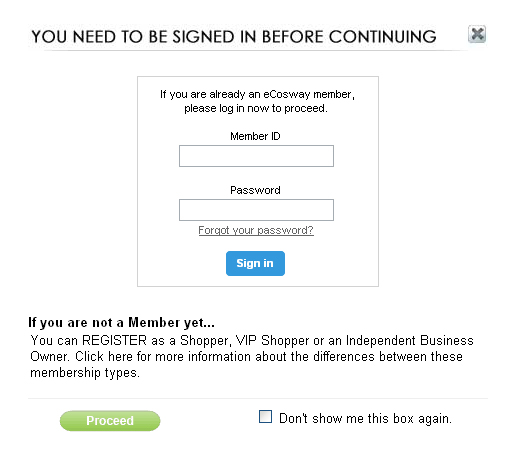
- If you did not sign in before shopping, you will be asked to log in when you click “buy” on the Product Display page (Step 4).
- If you are not yet a member and would like to register, just click on “Shopper”, "VIP Shopper” or "Independent Business Owner” to go to the respective registration page.
- At anytime during your shopping experience, you may view, add or cancel products in your cart by clicking on “View Cart” on the top right of the webpage.
- To edit the quantity, just type in a new quantity.
- To remove an item in your cart, click on the trash can icon on the corresponding row.
- To buy more product(s), click on “Continue Shopping” or if you’re done with shopping, select your shipping destination and then click on “Checkout”.
- Confirm your shipping information by filling in the details.
- Click “Proceed” to go to the Confirmation & Payment page or click “Go Back” to return to view cart.
- Select the payment method and fill in your email address. Select your delivery method and click proceed.
- Fill in your billing details and click submit to confirm payment.
- We will send you a confirmation email once your transaction is verified.
Step-by-step Shopping Guide for Shoppers
- To shop, sign in to your account using your Shopper ID and Password.
- Click on the “Shop” link on the Home page and choose any of the links.
- Click on a product category to view full range of products available under that category.
- Indicate the quantity you would like to purchase and click on “buy”.
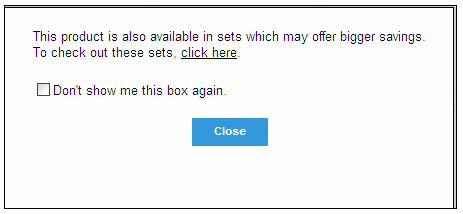
- A pop-up message will appear if there are any related offer sets for the product selected:
Just click “here” in that message to view the offer sets or you can check the box and click on “Close” to proceed to the product description page.
Only the retail price is available on the product description page |
|
- Enter the quantity you would like to buy and click “Add To Cart” or “Close” to go back to the Product Display page. Your selected product will be added to your cart.
- To purchase a product in a promotional set, click on “buy”. Product options will be available.
- Select items and click [>] to add them to the “Item(s) selected” list or [< to remove them from the list. Select a “Price Type”, enter a quantity and then click “Add To Cart”. The message “Product added to cart” will appear.
- If you did not sign in before shopping, you will be asked to log in when you click “buy” on the Product Display page (Step 4).
- If you are not yet a member and would like to register, just click on “Shopper”, "VIP Shopper" or "Independent Business Owner” to go to the respective registration page.
- Once you have entered your ID and password, click “Proceed” to add the product to your shopping cart. Before clicking “Proceed”, check the box if you do not want the pop-up message to appear again.
- At anytime during your shopping experience, you may view, add or cancel products in your cart by clicking on “View Cart” on the top right of the webpage.
- To edit the quantity, just type in the new quantity.
- To remove an item in your cart, click on the trash can icon on the corresponding row.
- To buy more product(s), click on “Continue Shopping” or if you’re done with shopping, select your shipping destination and then click on “Checkout”.
- Confirm your shipping information by filling in the details.
- Click “Proceed” to go to the Confirmation & Payment page or click “Go Back” to return to view cart.
- Select the payment method and fill in your email address. Select your delivery method and click proceed.
- Fill in your billing details and click submit to confirm payment.
- We will send you a confirmation email once your transaction is verified.
|
 Download PDF
  Printer Friendly Format