|
Step-by-Step Guide for Ordering with Multiple IDs
How it works
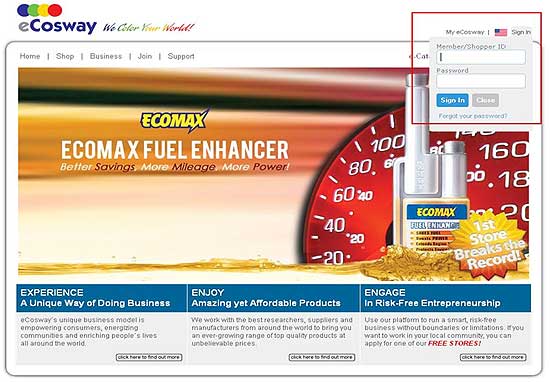
- Click on “Sign In” on the top right corner of the page. Enter your ID and password and then click on the “Sign In” button.
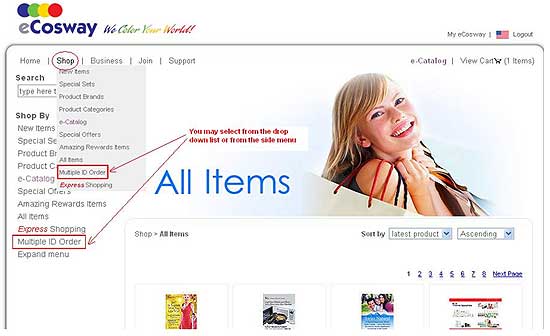
- Go to “Shop” on the top menu bar and choose “Multiple ID Order” from the drop down list. You can also click on “Multiple ID Order” from the side menu bar if you are already in the mall.
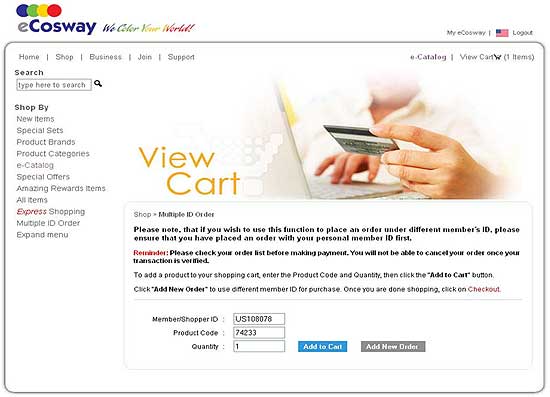
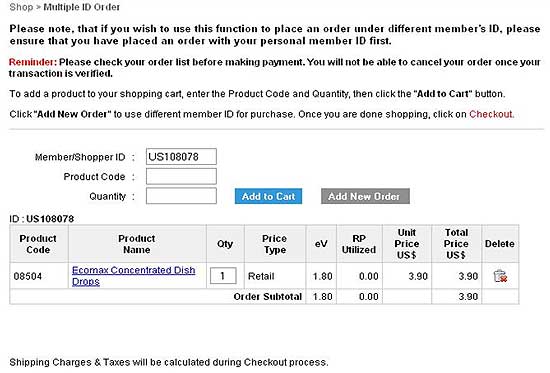
- To use the “Multiple ID Order” function, you need to place an order under your own ID before ordering under other IDs. Type in the product code and quantity that you wish to purchase and then click the “Add to Cart” button to proceed.
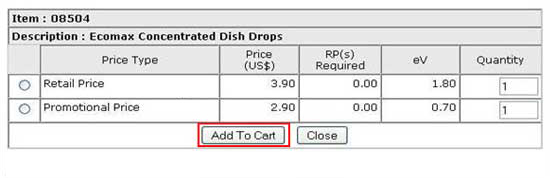
- If the product that you have selected is also available under a promotion e.g.“RP Price” or “Promotional Price”, a pop-up window with different pricing options will appear. Select your purchase option, type in the quantity that you wish to purchase and click the “Add To Cart” button to proceed.
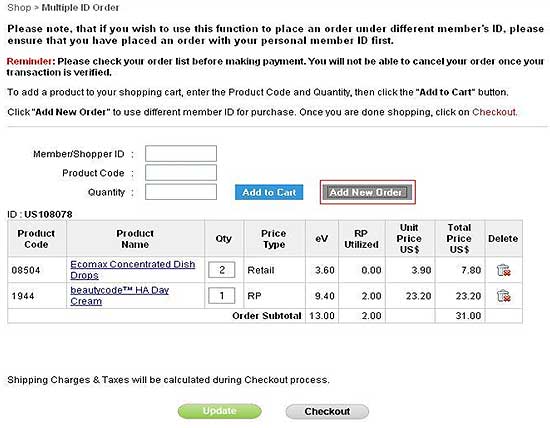
- If you would like to change the quantity of any product in your shopping cart, type in the new quantity and click on the “Update” button to refresh your shopping cart. To remove a product from your shopping cart, just click on the
 icon:. icon:.
- Repeat Steps 3 to 5 if you wish to purchase more products in the same transaction.
- When you are done with your order, you can order on behalf of other members using their IDs by clicking the “Add New Order” button.
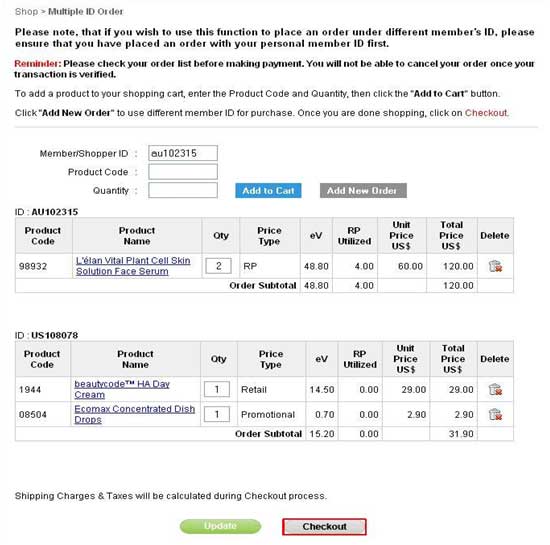
- Type in the member ID that you wish to place an order for, the product code and quantity, then click the “Add to Cart” button. Repeat steps 3 to 7 (where applicable).
- Once you’re done, check that all your order details are correct before you click the “Checkout” button.
- You will be brought to the Shipping Details page where you can enter the delivery address for each of your orders. To deliver to your current address, please select “Current Shipping Address Book”. If you wish to deliver to another destination, please select “Ship to a New Address” and fill in the new delivery address details. Click “proceed” when you are done.
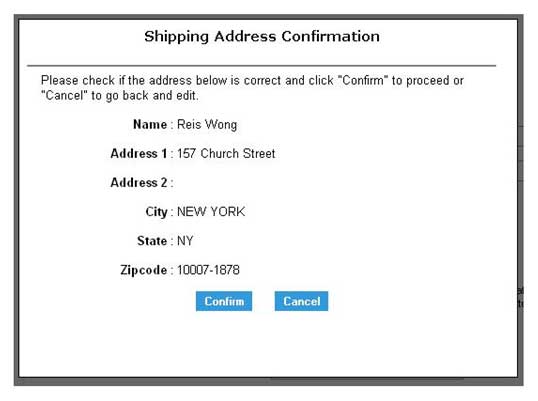
- A pop-up window will appear asking you to check if your address is correct. Click the “Confirm” button to proceed or “Cancel” to go back and edit.
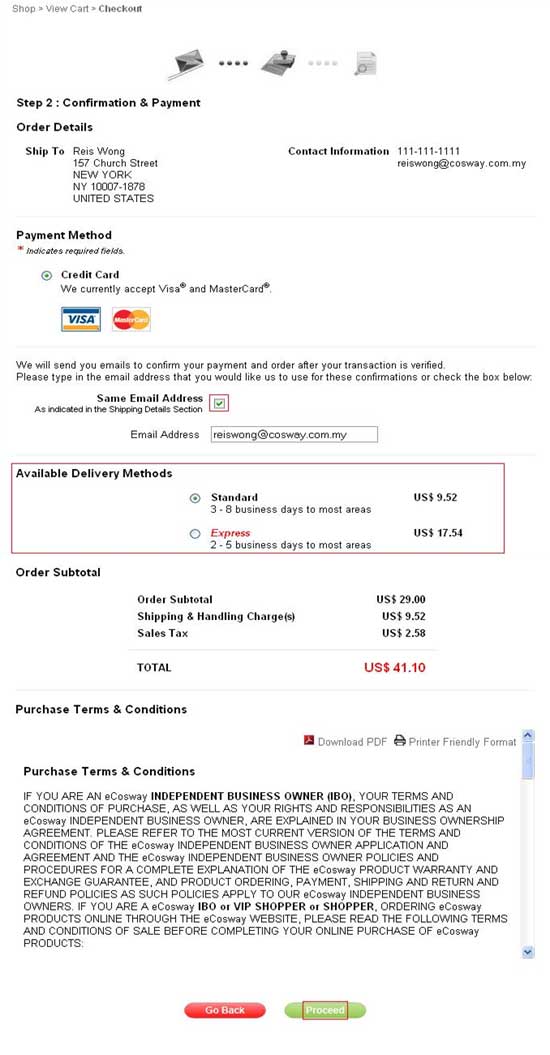
- At the Confirmation & Payment page, type in your email address or keep the box checked to use the same email address that you gave earlier. Select your preferred delivery method, and then click the “Proceed” button after you’ve read through the Purchase Terms & Conditions.
- Your order is done! We’ll send you a confirmation email once your transaction is verified.
|
 Download PDF
  Printer Friendly Format